This post is in the continuation of my previous post . In this post, I will tell you about :
- How to deploy HTML code to build iOS , Android and Windows application.
- How to retrive the value of the data from the form that we created in my previous post.
The submit button that we created in our previous does nothing. In this, we will add some functionality to it. We will show a popup after we press submit showing the values that we entered in the text boxes. To do this, you need to write a function in a javascript. It is a good idea to create a separate folder for all your scripts. I have created a folder named “js” and created a file called “custom.js” in that.
For the popup, you need create a separate “div” tag. Place the code shown above the closing “</body>” tag .
<div data-role="popup" id="submitPopup" data-inline="true" data-transition="slideup" data-position-to="origin" >
<span id="popupText"></span>
</div>
The “data-role” defines that the element will be a pop-up and the id “popupText” will be explained later. Now we will call this popup on click of the submit button. For this, we need to write a function that will show this. Open your text editor and create a new file “custom.js” in the “js” folder that you have just created and paste the code below :
var name, email, id ; //every parameter is a variable in javascript, no int, strings or floats, just variables
function getData()
{
name= document.getElementById("name").value; //code to get the user input of "name" field
phone= document.getElementById("phone").value; //code to get the user input of "phone" field
address= document.getElementById("address").value; //code to get the user input of "address" field
$("#submitPopup").popup("open"); // this will open the pop up
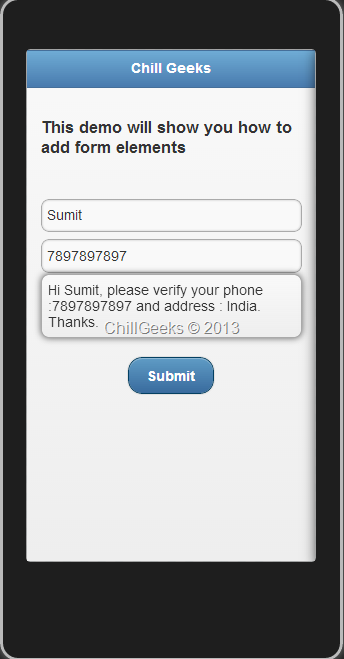
$("#popupText").html("Hi " +name+", please verify your phone :"+phone +" and address : "+address+". Thanks."); //setting the value in the "popupText" id span
}
Here we are binding the “div” id(s) to the function.
Now we need to call the “getData()” function on the press of the “Submit” button. To do this, add
onClick="getData()"
in the <a> tag in index.html. Also, in the index.html, link the script file. The complete file looks like this :
<!DOCTYPE>
<html>
<head>
<meta charset="UTF-8" />
<meta name="viewport" content="user-scalable=no, width=device-width, initial-scale=1, maximum-scale=1">
<title>ChillGeeks</title>
<link href="jquery-mobile/jquery.mobile-1.3.0.min.css" rel="stylesheet" type="text/css" />
<script src="jquery-mobile/jquery-1.8.2.min.js" type="text/javascript"></script>
<script src="jquery-mobile/jquery.mobile-1.3.0.min.js" type="text/javascript"></script>
<script src="js/custom.js" type="text/javascript"></script>
</head>
<body>
<div data-role="header" data-theme="b">
<h1>Chill Geeks</h1>
</div>
<div data-role="content">
<h3>
This demo will show you how to add form elements
</h3>
</br>
<input type="text" id="name" value="" placeholder="Enter Your Name">
<input type="tel" id="phone" value="" placeholder="Enter Your Phone Number">
<input type="text" id="address" value="" placeholder="Enter Your Address">
</div>
</br>
<div style="text-align:center">
<a href="#" data-role="button" data-inline="true" data-theme="b" onClick="getData()" >Submit</a>
</div>
<div data-role="popup" id="submitPopup" data-inline="true" data-transition="slideup" data-position-to="origin" >
<span id="popupText"></span>
</div>
</body>
</html>
Just run the code, and you will see the following screenshot after pressing Submit button :
Now comes the main part to deploy this code on actual mobile. We will do this with the help of Phonegap. To know what actual is Phonegap and what it does, click here.
You need to download the “cordova.js”. You can download it from here. Paste the contents (3 JS files) in “HelloWorld” folder . Update the “index.html” to give it the reference of the Cordova files. The complete code looks like this :
<!DOCTYPE>
<html>
<head>
<meta charset="UTF-8" />
<meta name="viewport" content="user-scalable=no, width=device-width, initial-scale=1, maximum-scale=1">
<title>ChillGeeks</title>
<link href="jquery-mobile/jquery.mobile-1.3.0.min.css" rel="stylesheet" type="text/css" />
<script src="jquery-mobile/jquery-1.8.2.min.js" type="text/javascript"></script>
<script src="jquery-mobile/jquery.mobile-1.3.0.min.js" type="text/javascript"></script>
<script src="js/custom.js" type="text/javascript"></script>
<script src="cordova.js" type="text/javascript"></script>
</head>
<body>
<div data-role="header" data-theme="b">
<h1>Chill Geeks</h1>
</div>
<div data-role="content">
<h3>
This demo will show you how to add form elements
</h3>
</br>
<input type="text" id="name" value="" placeholder="Enter Your Name">
<input type="tel" id="phone" value="" placeholder="Enter Your Phone Number">
<input type="text" id="address" value="" placeholder="Enter Your Address">
</div>
</br>
<div style="text-align:center">
<a href="#" data-role="button" data-inline="true" data-theme="b" onClick="getData()" >Submit</a>
</div>
<div data-role="popup" id="submitPopup" data-inline="true" data-transition="slideup" data-position-to="origin" >
<span id="popupText"></span>
</div>
</body>
</html>
Create a new file in your text editor and name it “config.xml” that will give Phonegap the basic information about the application and save it in “HelloWorld” folder . Paste the following code in it :
<?xml version="1.0" encoding="UTF-8" ?>
<widget xmlns = "http://www.w3.org/ns/widgets"
xmlns:gap = "http://phonegap.com/ns/1.0"
id = "com.headstrong.stockintelligence"
versionCode="10"
version = "1.0.0">
<!-- versionCode is optional and Android only -->
<name>Chill Geeks</name>
<description>
Created with the help of www.ChillGeeks.com .
</description>
<author>
Chill Geeks
</author>
<feature name="http://api.phonegap.com/1.0/device" />
<preference name="phonegap-version" value="2.9.0" />
<preference name="orientation" value="default" />
<preference name="target-device" value="universal" />
<preference name="fullscreen" value="false" />
<icon src="icon.png" height="72" width="72" />
</widget>
You are almost done. Now create a new account on https://build.phonegap.com . Once created, you need to upload your code using a .zip format. Just zip all the contents of the Helloworld and upload and you will see something like this :
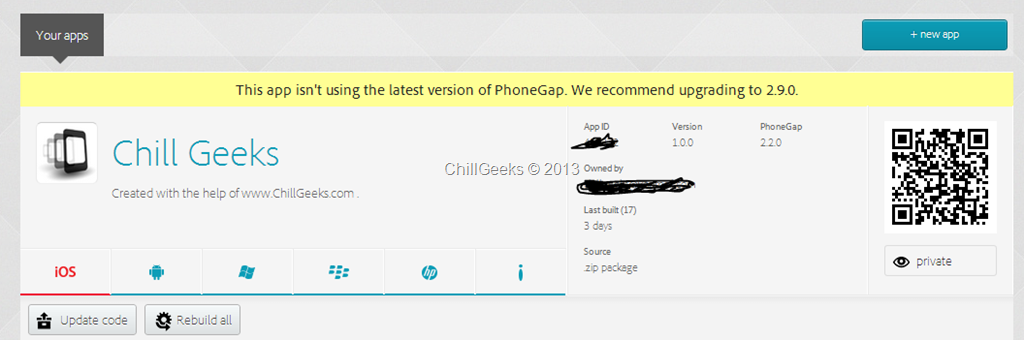
Just scan the code using any bar code reader on your mobile and run the app. It will run smoothly.
To run on iOS device, you need to upload the developer certificate and configuration file.
This was all about building Android, iOS and Windows app using HTML5 and CSS. We will be sharing more tutorials in few days.
[...] This is the part one of the series, You can directly to second part from Develop iOS, Android & Windows applications using HTML – Part 2 [...]
ReplyDeleteMy brother recommended I would possibly like this blog. He was totally right.
ReplyDeleteThis put up actually made my day. You can not believe simply how much
time I had spent for this info! Thanks!