
Unlocking a secured PDF file

If you are having a [highlight]secured[/highlight] PDF file, for which you don't know password to make edits. This post is for you. I was having this problem in editing a PDF file, it was a secured file, after doing a bit of research I found this PDF password remover software, this takes less than a minute to remove password from secured PDF files. The download link to this software is given at end of this post. You can also read this guide, if you are having any problems removing password from a secured PDF.


[accordion]
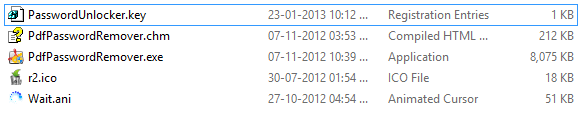
[acc title="Step 1"]Download the zip file, extract it to some folder, it will contain following contents in it.Zip file contents [/acc]
[acc title="Step 2"]Open the PdfPasswordRemover.exe file and add the file for which you want to remove the security.
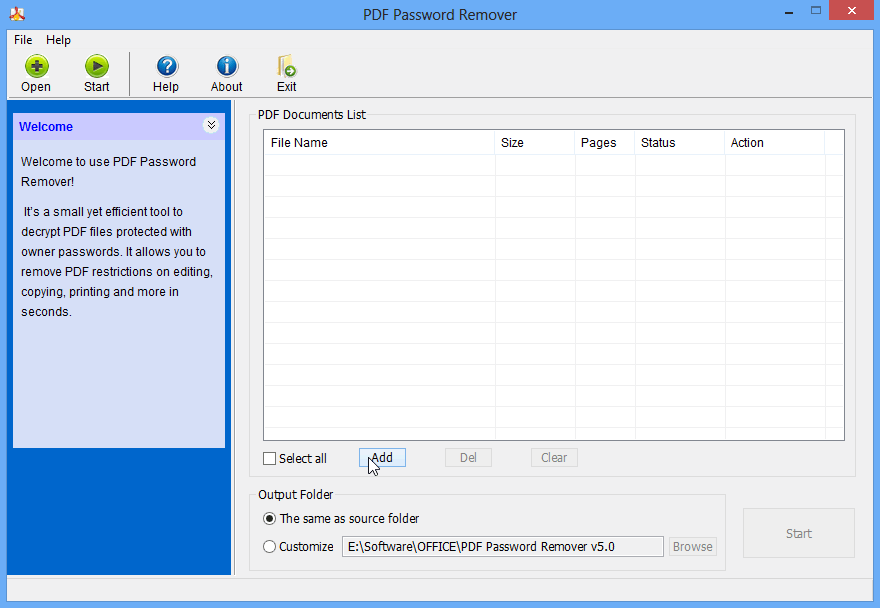

Application Window


[/acc]
[acc title="Step 3"]If there is a PDF viewing/opening password, you will need to input that one.
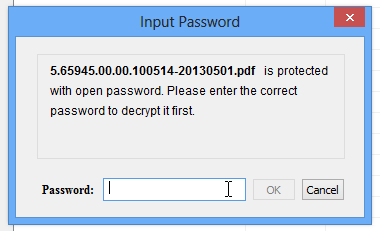

Password


[/acc]
[acc title="Step 4"]Now choose your output file location and click on start to unlock the PDF file password. You won't get the password, but a new document will be created with passwords removed.
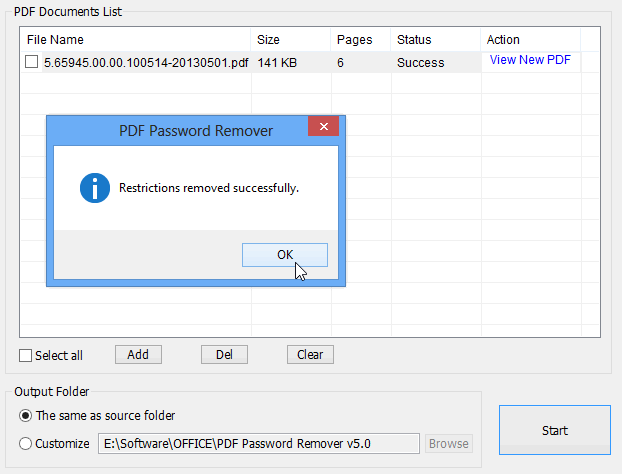

Done


[/acc]
[/accordion]


Please note that this software only removes security from PDF files, to enable editing, this software can not crack PDF Opening or Viewing password. To download this software please use the box below-


[sociallocker id="717"][button link="http://db.tt/8emOO6jB" style="light" size="large" target="_blank"]Download[/button][/sociallocker]

Comments

  1. Thanks Prateek ,
    It really works.....grt post.... :)

    ReplyDelete
  2. Thanks for the nice work :)

    ReplyDelete

Post a Comment

Popular posts from this blog

5 things to remember before buying a new smartphone

When you need a new smartphone, it isn’t easy deciding which phone to pick and if you are not careful, you might end up paying extra for features you do not need. That is why it is advisable to compare mobile features and make an informed decision. The top runners in the list of good smartphones are the Samsung Galaxy S5, Apple iPhone 5s, Motorola Moto X, HTC One (M8), LG G2, Nokia Lumia 1520, Samsung Galaxy Note 3, Google Nexus 5 a nd Motorola Moto G. Keep in mind the design, display, performance, camera and battery while comparing these phones. Design You need to decide whether you want a small phone that fits easily in your pocket or you would rather prefer a big screen phone. The iPhone 5s is relatively small in size compared to the massive Lumia 1520. Getting a small size phone doesn’t guarantee it being lightweight, most often it is the opposite. The smaller phone, most often is the heaviest. The Nexus 5 however, is small in size and lightweight. Phones often come in plastic or ...

Fulfilling The Urge of Shopping is Now Easy

Shopaholics on the alert! Get set, and go! Yes, it has indeed turned into a race – a race of online shopping. It may be an occasion embraced shopping carnival or a clearance sale or simply just a season ending mega sale. On its way is another such colossal online shopping fest knownas the Great Online Shopping Festival or simply GOSF which is to take place from the 10th to the 12th of December 2014.   What does GOSF do? The GOSF is an initiative by Google and was launched on the 12th of December, 2012. Ever since then, it has been a favorite among its users. The GOSF offers are not only limited to those particular days of December but numerous trifle coupons, reminders as well as updates are also sent to your registered email ids all through the year. Along with these, there are funny little games on the GOSF site that provide you with innumerable opportunities to win yourself free gift coupons or free shopping facilities just by scoring points in the game.   Worried about the products...

Create Windows 7 bootable USB

Many of us are so lazy these days that we do n’t want to use optical media for any purpose. Now, even Mini laptops do n’t include DVD +RW drive in them. My friend having a similar problem came to me, he was not having any optical media drive in hp Mini laptop. So, he asked me about how could he be able to load Windows 7 or Vista into it, and the answer is by creating a bootable usb pen drive. It is very simple to create a bootable USB drive for Windows 7. Here is the whole guide to create Windows 7 USB installation Preparing the USB drive Get a 4GB or more capacity of USB pen drive, SD/MMC card might also work (not tested by me). Format the pen drive in NTFS file system and copy all the data of Windows Installation DVD into USB drive. Click on start and click Run… Type cmd and press enter. Run cmd as administartor. Now open the USB drive, for example J: drive is my USB drive, I’ll type J: and press enter. Type- cd boot bootsect /nt60 J: /force This will make your pen drive...