Convert and Manage PDF Files easily with PDF Converter Elite

Without ay doubt, PDF is the most widely used file format. Small and highly supported, you use them everyday at work, home, school etc. There are times when you need to convert them to another format, probably when you receive a PDF data sheet and wish to review the same in excel or when you need to edit a document etc. etc. With this article, we review a brand new application, PDF Converter Elite 3 which can help you save a lot of your time.

PDF Converter Elite 3 is a light and wonderful PDF management suite that is fully equipped to create, convert and manage all your PDF requirements. You can convert to and fro from Word, Excel and Powerpoint and Paint. It also enables you to secure your PDF files. Download a 15 day trial from here.
image

image

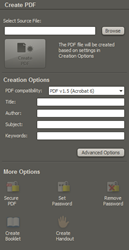
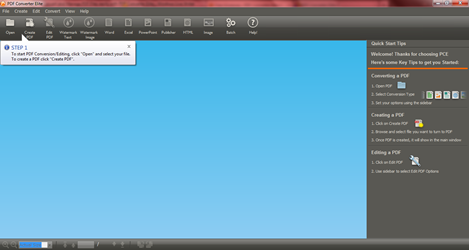
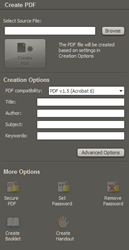
On the home screen, you can choose to “Create”, “Edit”, “Insert Watermark”, “Batch” process PDF files. When you select the create option, you are given the choice open the file and then process them.

Once you have opened the PDF, you can choose to edit, add pages, extract text, extract images, merge several PDFs and various other editing options.

With Convert you can manage and realise all possible PDF conversions.You can even process/convert multiple files at once using the batch conversion option.


Special Features:

  • Create secure documents, add/edit/remove passwords.
  • 100% editable conversion
  • 300+ applications supported
  • Create Hand Outs for your meetings and product booklets.
  • View and Edit your files at the same place.
  • Convert PDF to Excel. Word, Text, PowerPoint, HTML etc.
  • Re arrange and merge multiple files.
  • Stamp and Watermark your files.
  • Brand all your files with your company name.

Click here to download a free trial now.

Comments

  1. PDF Converter Elite 3 seems very easy to use. I like its simplicity and ease of use. I hope it can be available online so that I do not need to download and install it on my PC to save memory space on my hard drive. It has many features that I can use but I would like something that I can access anytime and anywhere as long as I have an internet connection though a portable version may also be good in case internet is not available in my location.

    ReplyDelete

Post a Comment

Popular posts from this blog

5 things to remember before buying a new smartphone

When you need a new smartphone, it isn’t easy deciding which phone to pick and if you are not careful, you might end up paying extra for features you do not need. That is why it is advisable to compare mobile features and make an informed decision. The top runners in the list of good smartphones are the Samsung Galaxy S5, Apple iPhone 5s, Motorola Moto X, HTC One (M8), LG G2, Nokia Lumia 1520, Samsung Galaxy Note 3, Google Nexus 5 a nd Motorola Moto G. Keep in mind the design, display, performance, camera and battery while comparing these phones. Design You need to decide whether you want a small phone that fits easily in your pocket or you would rather prefer a big screen phone. The iPhone 5s is relatively small in size compared to the massive Lumia 1520. Getting a small size phone doesn’t guarantee it being lightweight, most often it is the opposite. The smaller phone, most often is the heaviest. The Nexus 5 however, is small in size and lightweight. Phones often come in plastic or ...

Fulfilling The Urge of Shopping is Now Easy

Shopaholics on the alert! Get set, and go! Yes, it has indeed turned into a race – a race of online shopping. It may be an occasion embraced shopping carnival or a clearance sale or simply just a season ending mega sale. On its way is another such colossal online shopping fest knownas the Great Online Shopping Festival or simply GOSF which is to take place from the 10th to the 12th of December 2014.   What does GOSF do? The GOSF is an initiative by Google and was launched on the 12th of December, 2012. Ever since then, it has been a favorite among its users. The GOSF offers are not only limited to those particular days of December but numerous trifle coupons, reminders as well as updates are also sent to your registered email ids all through the year. Along with these, there are funny little games on the GOSF site that provide you with innumerable opportunities to win yourself free gift coupons or free shopping facilities just by scoring points in the game.   Worried about the products...

Create Windows 7 bootable USB

Many of us are so lazy these days that we do n’t want to use optical media for any purpose. Now, even Mini laptops do n’t include DVD +RW drive in them. My friend having a similar problem came to me, he was not having any optical media drive in hp Mini laptop. So, he asked me about how could he be able to load Windows 7 or Vista into it, and the answer is by creating a bootable usb pen drive. It is very simple to create a bootable USB drive for Windows 7. Here is the whole guide to create Windows 7 USB installation Preparing the USB drive Get a 4GB or more capacity of USB pen drive, SD/MMC card might also work (not tested by me). Format the pen drive in NTFS file system and copy all the data of Windows Installation DVD into USB drive. Click on start and click Run… Type cmd and press enter. Run cmd as administartor. Now open the USB drive, for example J: drive is my USB drive, I’ll type J: and press enter. Type- cd boot bootsect /nt60 J: /force This will make your pen drive...