Many of us must be using Mozilla Firefox, So I’ve created a search engine extension which works on Mozilla Firefox and searches with in Chill Geeks. You could also create a similar extension for your blog. Creating Search engine plug-in for Firefox web browser is very easy. Some of the prerequisites to make your search addon,is that, you should have a little idea about working with XML. You can start making your own blog Search Engine using the template below-
<OpenSearchDescription xmlns="http://a9.com/-/spec/opensearch/1.1/"
xmlns:moz="http://www.mozilla.org/2006/browser/search/">
<ShortName>engineName</ShortName>
<Description>engineDescription</Description>
<InputEncoding>inputEncoding</InputEncoding>
<Image width="16" height="16" type="image/x-icon">data:image/x-icon;base64,imageData</Image>
<Url type="text/html" method="method" template="searchURL">
<Param name="paramName1" value="paramValue1"/>
...
<Param name="paramNameN" value="paramValueN"/>
</Url>
<Url type="application/x-suggestions+json" template="suggestionURL"/>
<moz:SearchForm>searchFormURL</moz:SearchForm>
</OpenSearchDescription>
I’ve got this template from Mozilla Developer Center. Various terms used in above template are described at Mozilla Developer’s Center
I’ll explain how I created search engine plug-in for Chill Geeks.
<SearchPlugin xmlns="http://www.mozilla.org/2006/browser/search/">
<ShortName>Chill Geeks</ShortName>
<Description>Chill Geeks Google Search</Description>
<InputEncoding>UTF-8</InputEncoding>
<Image height="16" width="16" type="image/x-icon">http://i724.photobucket.com/albums/ww248/chillgeeks/flex.gif</Image>
<Url type="application/x-suggestions+json" method="GET" template="http://suggestqueries.google.com/complete/search?output=firefox&client=firefox&hl={moz:locale}&q={searchTerms}"/>
<Url type="text/html" method="GET" template="http://www.chillgeeks.com/search">
<Param name="q" value="{searchTerms}"/>
</Url>
</SearchPlugin>
Details-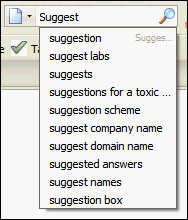
You could also specify Image that will appear in search bar by replacing http://i724.photobucket.com/albums/ww248/chillgeeks/flex.gif with your own favicon image URL.
You can also submit your extension to Mozilla Add-ons, which will increase the popularity of your website. Please let me know by comments, if you get any difficulty in making your search engine extension.
<OpenSearchDescription xmlns="http://a9.com/-/spec/opensearch/1.1/"
xmlns:moz="http://www.mozilla.org/2006/browser/search/">
<ShortName>engineName</ShortName>
<Description>engineDescription</Description>
<InputEncoding>inputEncoding</InputEncoding>
<Image width="16" height="16" type="image/x-icon">data:image/x-icon;base64,imageData</Image>
<Url type="text/html" method="method" template="searchURL">
<Param name="paramName1" value="paramValue1"/>
...
<Param name="paramNameN" value="paramValueN"/>
</Url>
<Url type="application/x-suggestions+json" template="suggestionURL"/>
<moz:SearchForm>searchFormURL</moz:SearchForm>
</OpenSearchDescription>
I’ve got this template from Mozilla Developer Center. Various terms used in above template are described at Mozilla Developer’s Center
I’ll explain how I created search engine plug-in for Chill Geeks.
- Open C:Program FilesMozilla Firefoxsearchplugins
- There you’ll see all search engine plug-in’s xml files, open up any file using Notepad++ or any text Editor and you will get an idea about the working of various search engine addons
- Now create a new file over there, name it as yoursite.xml
- Use the template above and make the required changes.
<SearchPlugin xmlns="http://www.mozilla.org/2006/browser/search/">
<ShortName>Chill Geeks</ShortName>
<Description>Chill Geeks Google Search</Description>
<InputEncoding>UTF-8</InputEncoding>
<Image height="16" width="16" type="image/x-icon">http://i724.photobucket.com/albums/ww248/chillgeeks/flex.gif</Image>

<Url type="application/x-suggestions+json" method="GET" template="http://suggestqueries.google.com/complete/search?output=firefox&client=firefox&hl={moz:locale}&q={searchTerms}"/>
<Url type="text/html" method="GET" template="http://www.chillgeeks.com/search">
<Param name="q" value="{searchTerms}"/>
</Url>
</SearchPlugin>
Details-
- Searchplugin is used to define starting of plugin xml
- Shortname is used to display name in search bar
- InputEncoding, keep it UTF-8
- Image, specifies the path of favicon of your site.
- Url type JSON, fetches Suggestion quiries from Google.
- Url type html, specifies site to search within.
- Param (Parameters), vairable seach term.
You could also specify Image that will appear in search bar by replacing http://i724.photobucket.com/albums/ww248/chillgeeks/flex.gif with your own favicon image URL.
You can also submit your extension to Mozilla Add-ons, which will increase the popularity of your website. Please let me know by comments, if you get any difficulty in making your search engine extension.
nice..thanks man
ReplyDeletethnx alot, it is a useful post, u r a Professional .
ReplyDeleteHello there, I do think your blog could be having browser
ReplyDeletecompatibility problems. Whenever I look at your site in Safari, it looks fine however, if opening in IE, it has some
overlapping issues. I just wanted to give you
a quick heads up! Apart from that, fantastic website! https://qwertty.net/
Hello there, I do think your blog could be having browser compatibility problems.
ReplyDeleteWhenever I look at your site in Safari, it looks fine however, if opening in IE, it has some overlapping issues.
I just wanted to give you a quick heads up!
Apart from that, fantastic website! https://qwertty.net/